Configuring Dashboards sign-in for multiple authentication options
You can configure the sign-in window for OpenSearch Dashboards to provide either a single option for authenticating users at sign-in or multiple options. Currently, Dashboards supports basic authentication, OpenID Connect, and SAML as the multiple options.
General steps for configuring multiple authentication options
Consider the following sequence of steps before configuring the sign-in window for multiple authentication options.
- Decide which types of authentication to make available at sign-in.
- Configure each authentication type, including an authentication domain for the identity provider (IdP) and the essential settings that give each type sign-in access to OpenSearch Dashboards. For OpenId Connect backend configuration, see OpenID Connect. For SAML backend configuration, see SAML.
- Add, enable, and configure multiple option authentication settings in the
opensearch_dashboards.ymlfile.
Enabling multiple authentication options
By default, Dashboards provides basic authentication for sign-in. To enable multiple options for authentication, begin by adding opensearch_security.auth.multiple_auth_enabled to the opensearch_dashboards.yml file and setting it to true.
To specify the multiple authentication types as options during sign-in, add the opensearch_security.auth.type setting to the opensearch_dashboards.yml file and enter multiple types as values. When more than one authentication type is added to the setting, the Dashboards sign-in window recognizes multiple types and adjusts to accommodate the sign-in options.
When setting up Dashboards to provide multiple authentication options, basic authentication is always required as one of the values for the setting.
Add a single value to the setting when only one authentication type is needed.
opensearch_security.auth.type: "openid"
For multiple authentication options, add values to the setting as an array separated by commas. As a reminder, Dashboards currently supports a combination of basic authentication, OpenID Connect, and SAML as a valid set of values. In the setting, these values are expressed as "basicauth", "openid", and "saml".
opensearch_security.auth.type: ["basicauth","openid"]
opensearch_security.auth.multiple_auth_enabled: true
opensearch_security.auth.type: ["basicauth","saml"]
opensearch_security.auth.multiple_auth_enabled: true
opensearch_security.auth.type: ["basicauth","saml","openid"]
opensearch_security.auth.multiple_auth_enabled: true
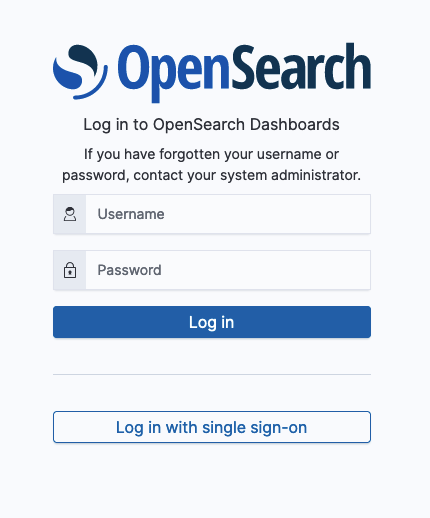
When the opensearch_security.auth.type setting contains basicauth and one other authentication type, the sign-in window appears as in the following example.
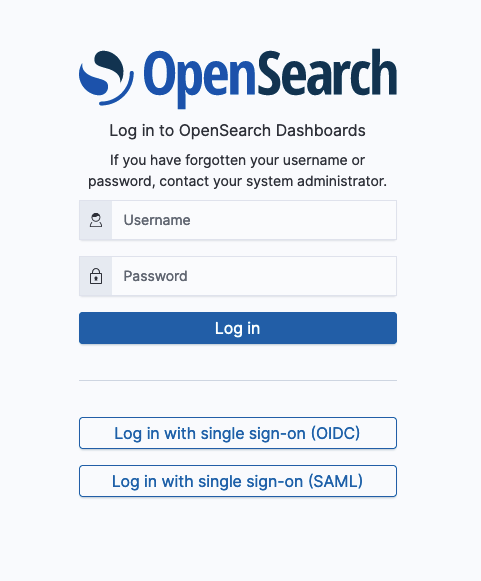
With all three valid authentication types specified, the sign-in window appears as in the following example.
Customizing the sign-in environment
In addition to the essential sign-in settings for each authentication type, you can configure additional settings in the opensearch_dashboards.yml file to customize the sign-in window so that it clearly represents the options that are available. For example, you can replace the label on the sign-in button with the name and icon of the IdP. Refer to the settings and descriptions that follow.
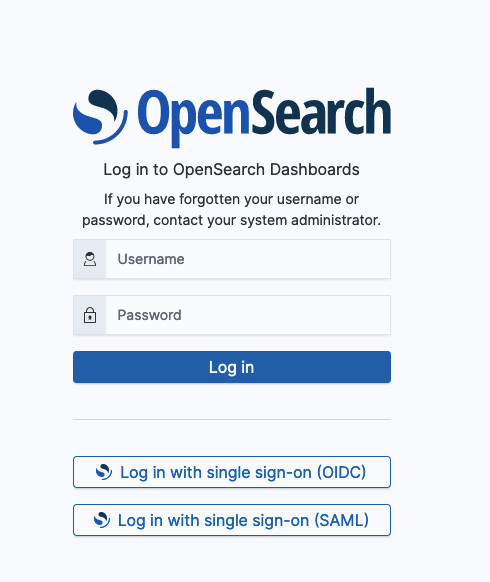
Basic authentication settings
These settings allow you to customize the basic username and password sign-in button.
Setting | Description
:--- | :--- |:--- |:--- |
opensearch_security.ui.basicauth.login.brandimage | Login button logo. Supported file types are SVG, PNG, and GIF.
opensearch_security.ui.basicauth.login.showbrandimage | Determines whether a logo for the login button is displayed or not. Default is true.
OpenID Connect authentication settings
These settings allow you to customize the sign-in button associated with OpenID Connect authentication. For the essential settings required to use OpenID Connect as a single sign-in option, see OpenSearch Dashboards single sign-on.
Setting | Description
:--- | :--- |:--- |:--- |
opensearch_security.ui.openid.login.buttonname | Display name for the login button. "Log in with single sign-on" by default.
opensearch_security.ui.openid.login.brandimage | Login button logo. Supported file types are SVG, PNG, and GIF.
opensearch_security.ui.openid.login.showbrandimage | Determines whether a logo for the login button is displayed or not. Default is false.
SAML authentication settings
These settings allow you to customize the sign-in button associated with SAML authentication. For the essential settings required to use SAML as a sign-in option, see OpenSearch Dashboards configuration.
Setting | Description
:--- | :--- |:--- |:--- |
opensearch_security.ui.saml.login.buttonname | Display name for the login button. "Log in with single sign-on" by default.
opensearch_security.ui.saml.login.brandimage | Login button logo. Supported file types are SVG, PNG, and GIF.
opensearch_security.ui.saml.login.showbrandimage | Determines whether a logo for the login button is displayed or not. Default is false.
Sample setup
The following example shows basic settings in the opensearch_dashboards.yml file when it is configured for two types of authentication at sign-in.
# The several settings directly below are typical of all `opensearch_dashboards.yml` configurations. #
server.host: 0.0.0.0
server.port: 5601
opensearch.hosts: ["https://localhost:9200"]
opensearch.ssl.verificationMode: none
opensearch.username: <preferred username>
opensearch.password: <preferred password>
opensearch.requestHeadersAllowlist: ["securitytenant","Authorization"]
opensearch_security.multitenancy.enabled: true
opensearch_security.multitenancy.tenants.preferred: ["Private", "Global"]
opensearch_security.readonly_mode.roles: ["<role_for_read_only>"]

# Settings that enable multiple option authentication in the sign-in window #
opensearch_security.auth.multiple_auth_enabled: true
opensearch_security.auth.type: ["basicauth","openid"]

# Basic authentication customization #
opensearch_security.ui.basicauth.login.brandimage: <path/to/OSlogo.png>
opensearch_security.ui.basicauth.login.showbrandimage: true

# OIDC auth customization and start settings #
opensearch_security.ui.openid.login.buttonname: Log in with <IdP name or other>
opensearch_security.ui.openid.login.brandimage: <path/to/brand-logo.png>
opensearch_security.ui.openid.login.showbrandimage: true

opensearch_security.openid.base_redirect_url: <"OIDC redirect URL">
opensearch_security.openid.verify_hostnames: false
opensearch_security.openid.refresh_tokens: false
opensearch_security.openid.logout_url: <"OIDC logout URL">

opensearch_security.openid.connect_url: <"OIDC connect URL">
opensearch_security.openid.client_id: <Client ID>
opensearch_security.openid.client_secret: <Client secret>